
ਵੇਰਵਾ
RowVista Slider makes it easy to showcase WordPress posts and public custom post types in responsive, reusable carousels. Create sliders for blogs, news, portfolios, or WooCommerce product posts, then insert them using a shortcode, Gutenberg block, or Elementor widget.
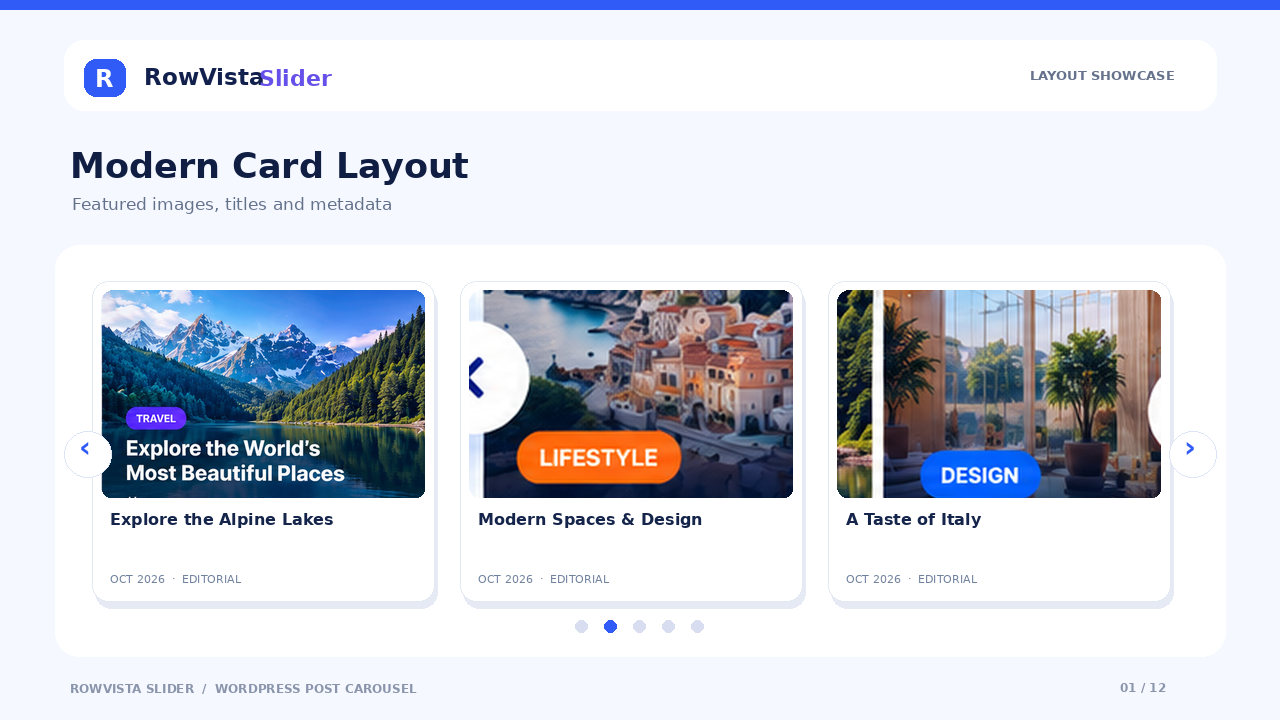
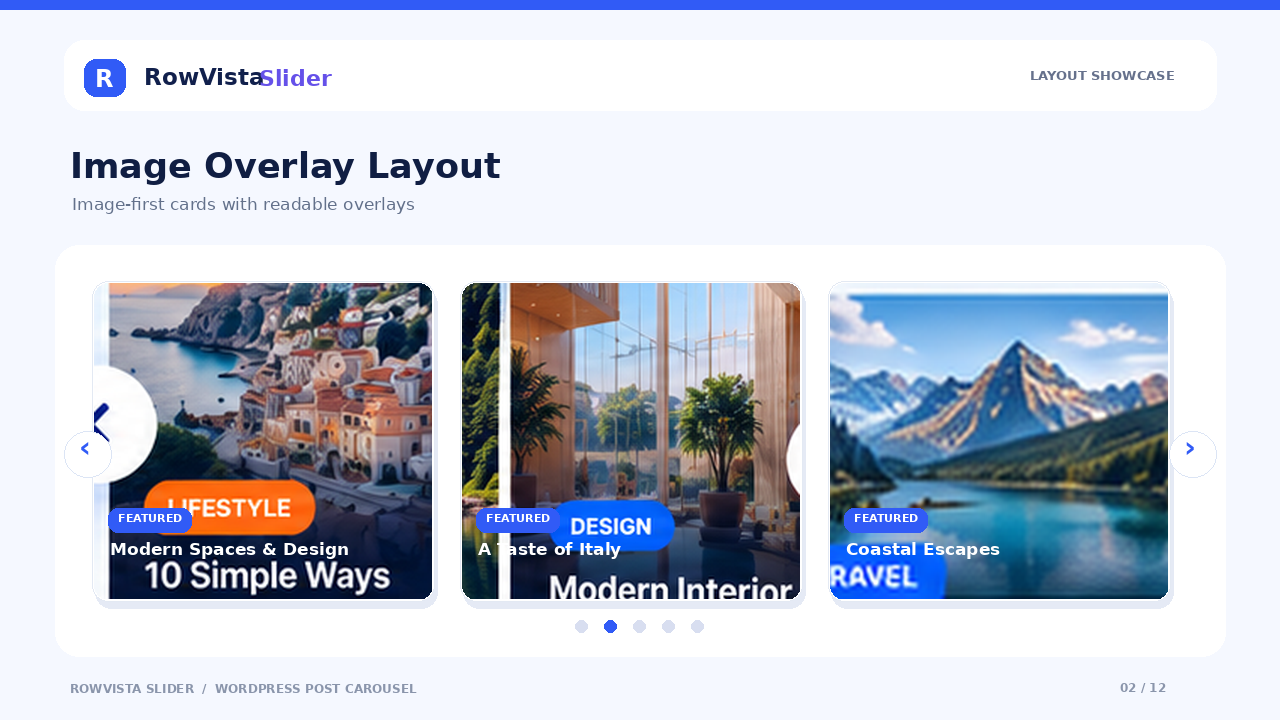
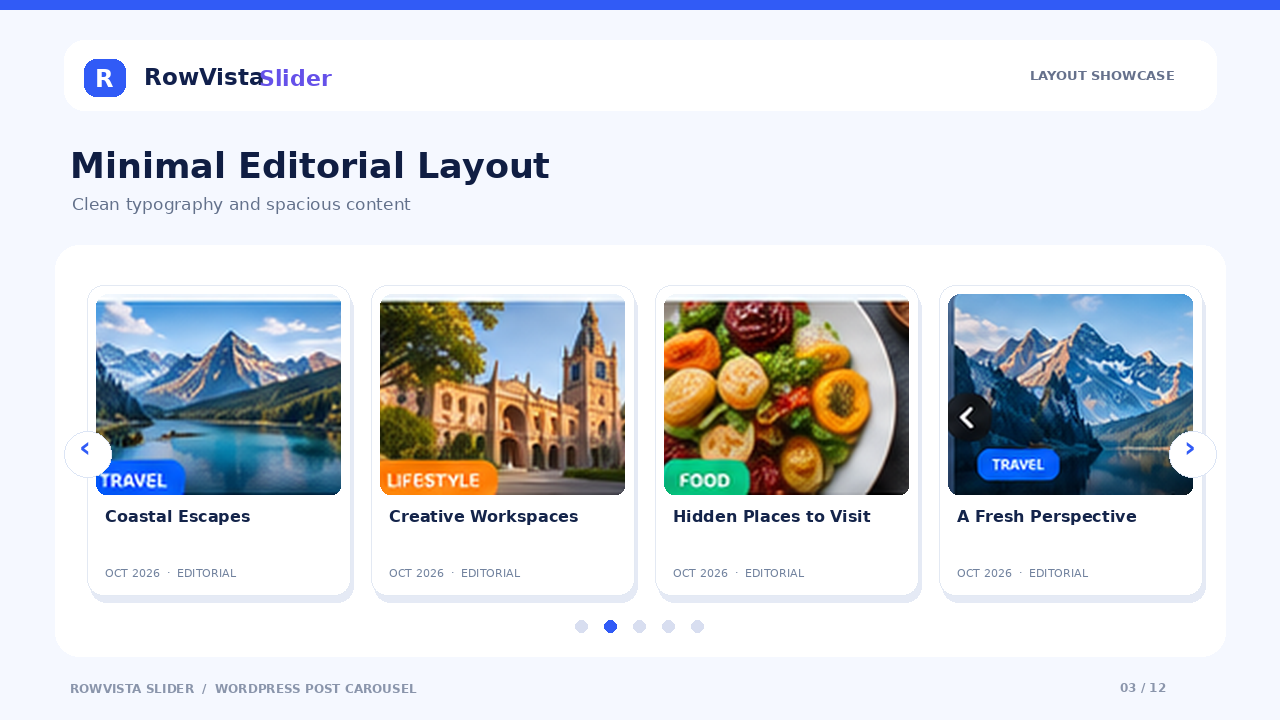
Seven card layouts
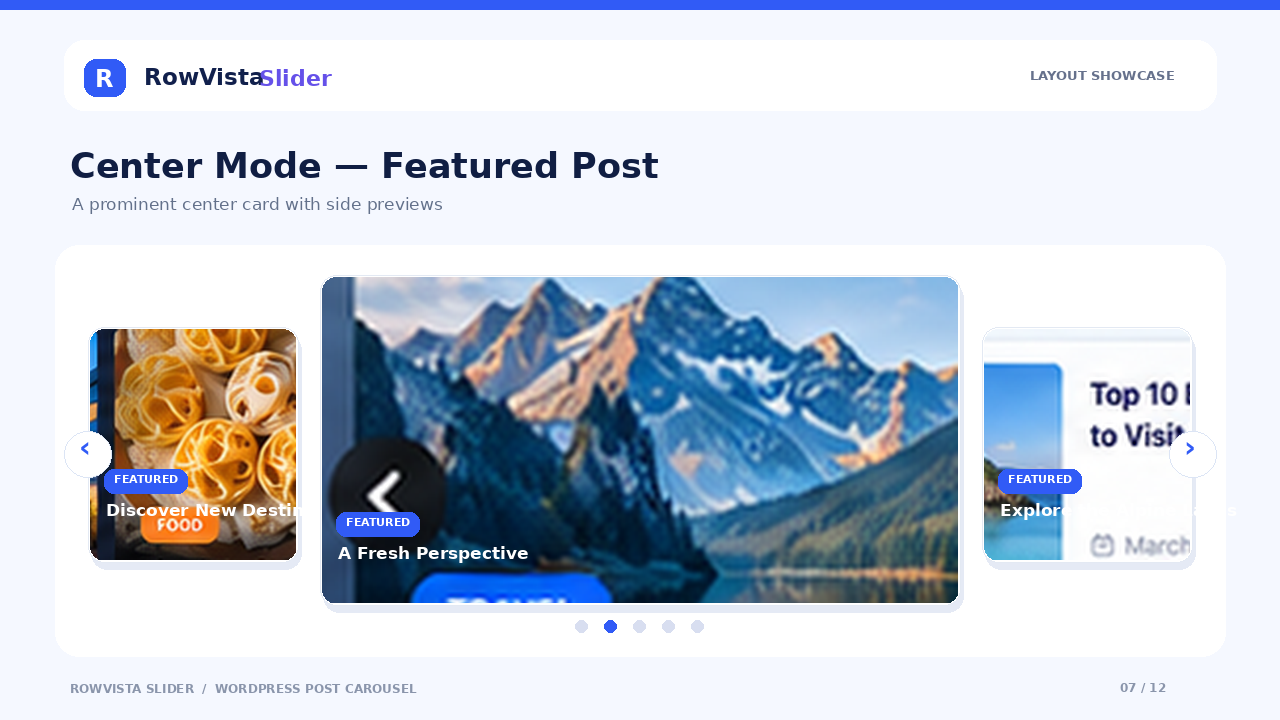
- Image Overlay: Text appears over featured images.
- Modern Card: Featured images and content in clean cards.
- Minimal: Simple, lightweight content presentation.
- Glass: Translucent, glass-style image overlays.
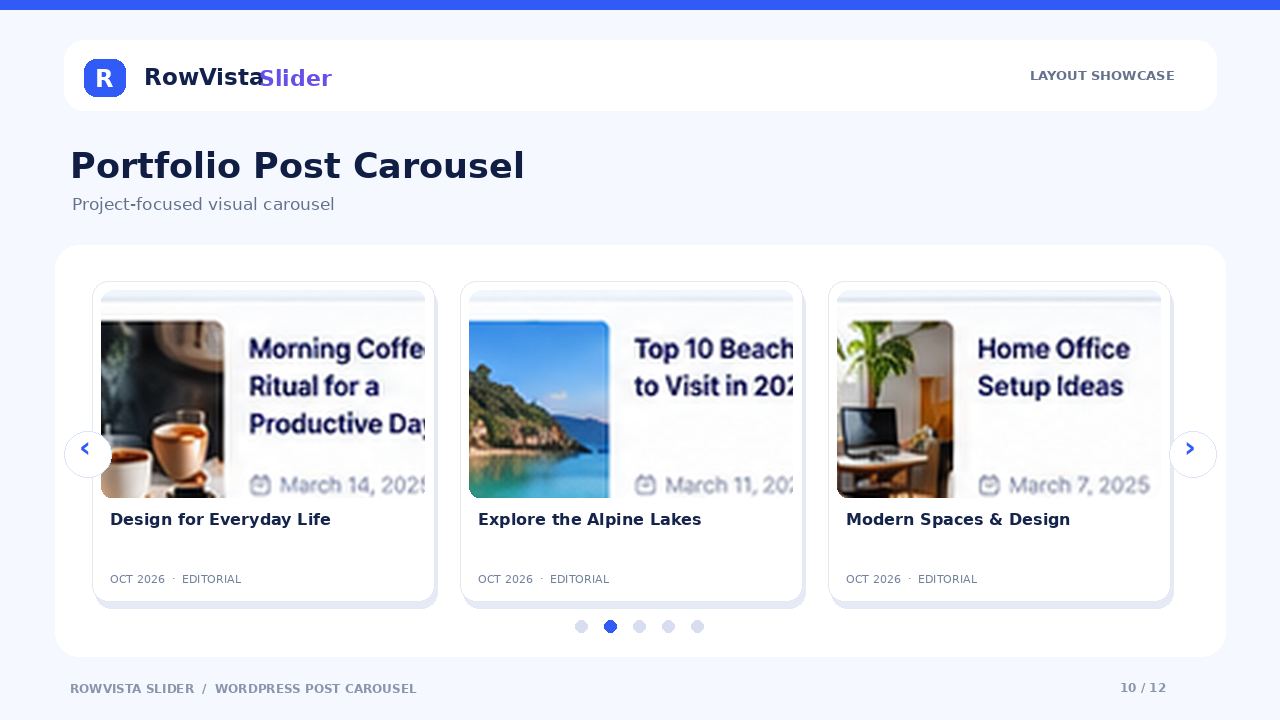
- Editorial: Magazine-inspired cards with accent borders.
- Bordered: Crisp, outlined cards.
- Gradient: Color-gradient content panels.
Flexible slider controls
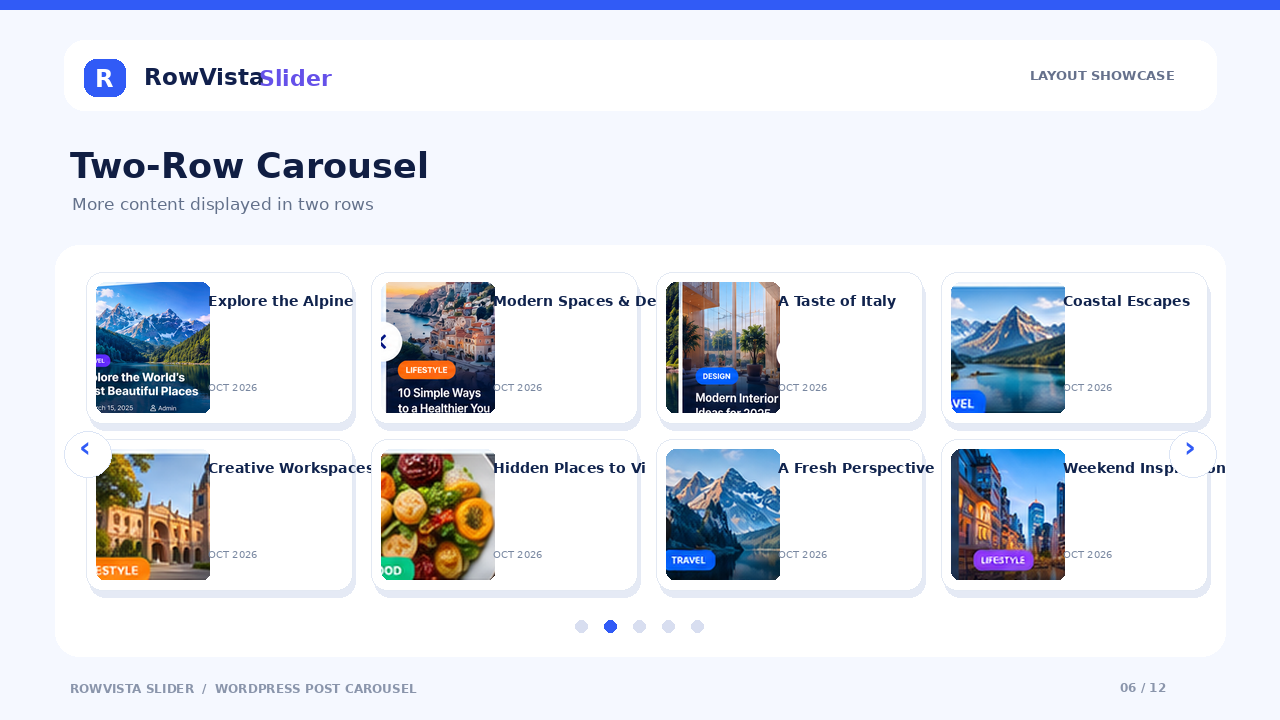
- Single-row and two-row carousels, with adjustable visible columns for desktop, tablet, and mobile.
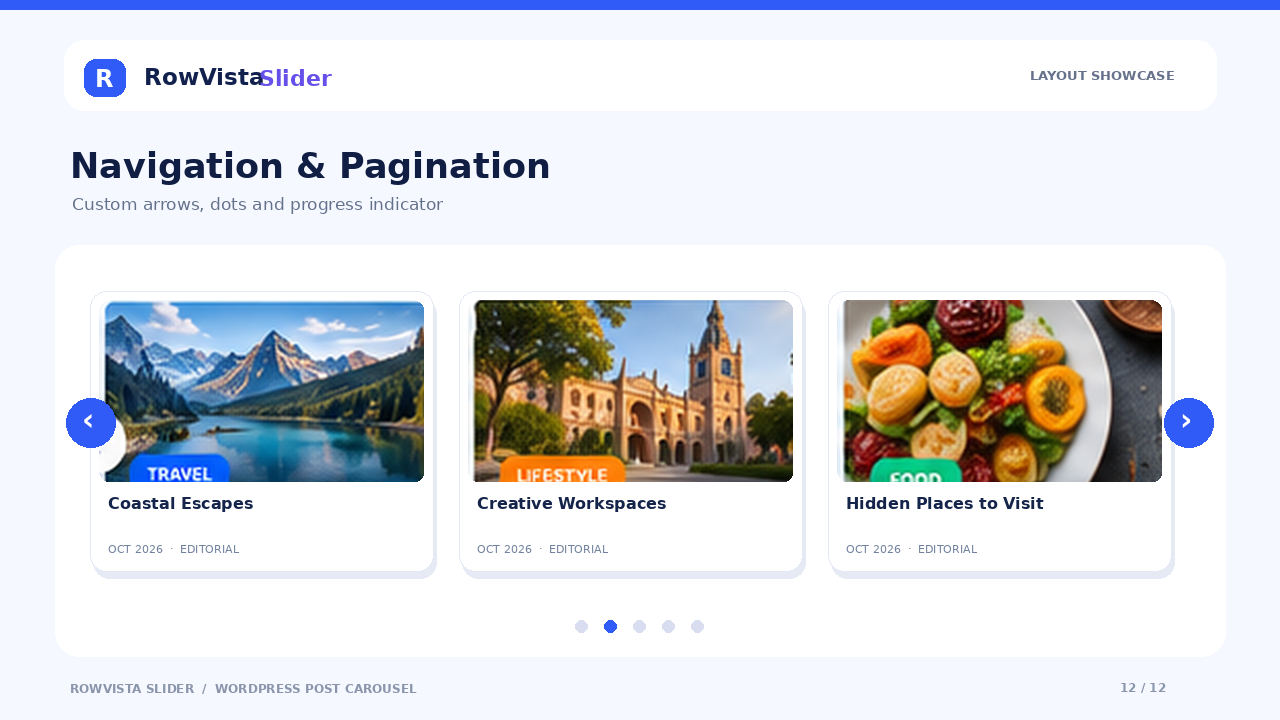
- Custom navigation arrows with icon, shape, color, size, and placement controls.
- Pagination dots with selectable styles and placement.
- Optional autoplay, pause/play control, progress indicator, infinite loop, and hover pause.
- Slide transitions, supported entrance animations, and image hover effects.
- Appearance controls for image sizing, font stack, text, background and accent colors, spacing, and rounded corners.
- Optional post title, category, date, excerpt, and read-more text.
- Content ordering, post limits, and optional taxonomy/term-ID filtering.
- Reusable sliders with independent settings and shortcodes.
- Gutenberg block and Elementor widget (when Elementor is active).
- Lazy-loaded featured images and reduced-motion support.
Quick start
- Open RowVista Slider > Create New Slider in the WordPress dashboard.
- Select a post type and choose one of seven layouts.
- Configure rows, responsive columns, arrows, pagination, and appearance.
- Publish your slider and copy its shortcode.
- Insert
[rowvista_slider id="123"]in a page or post (replace 123 with your slider ID).
Useful examples
- Blog and news posts: select the built-in
posttype. - Portfolio carousel: select a public portfolio post type provided by your theme or another plugin.
- WooCommerce product posts: select
productwhen WooCommerce is installed. Product-specific pricing/cart templates are not included. - Multiple carousels: insert different slider IDs on the same page.
Compatibility
The legacy [rowvista_slider] and [rowvista-slider] shortcodes remain available for existing global settings. New reusable sliders use an id attribute.
ਸਕਰੀਨਸ਼ਾਟ




ਬਲਾਕ
This plugin provides 1 block.
- RowVista Slider
ਸਥਾਪਤੀਕਰਨ
- Install via Plugins > Add New Plugin or upload the plugin ZIP.
- Activate RowVista Slider.
- Navigate to RowVista Slider > Create New Slider.
- Configure and publish a slider.
- Insert the generated shortcode, or select the slider in the Gutenberg block or Elementor widget.
ਅਕਸਰ ਪੁੱਛੇ ਜਾਂਦੇ ਸਵਾਲ
-
Can I create multiple sliders?
-
Yes. Each published slider has its own settings and shortcode, and multiple sliders can appear on one page.
-
Can I display custom post types?
-
Yes. Select a public post type available on your WordPress website.
-
Can I display WooCommerce products?
-
Yes, as posts of the public
productpost type when WooCommerce is active. Dedicated price and add-to-cart displays are not included. -
Does RowVista Slider support multiple rows?
-
Yes. Choose a single-row or two-row carousel in the slider settings.
-
Which layouts are included?
-
Image Overlay, Modern Card, Minimal, Glass, Editorial, Bordered, and Gradient.
-
Can I customize arrows and dots?
-
Yes. Configure navigation visibility by device, arrow icons and styling, and pagination style and placement.
-
Can I enable autoplay and a progress indicator?
-
Yes. Autoplay, pause/play controls, and the slide progress indicator are optional.
-
Can I change how many cards appear on mobile?
-
Yes. Desktop, tablet, and mobile column counts are configurable independently.
-
Can I filter posts by category or taxonomy?
-
Yes. Set a taxonomy slug and comma-separated term IDs compatible with the selected post type.
-
Does it work with Gutenberg and Elementor?
-
Yes. Use the RowVista Gutenberg block or the Elementor widget when Elementor is active. Shortcodes work without either builder.
-
Does it support animations?
-
Yes. Choose from the available transitions, entrance effects, and image hover styles. Some combinations are restricted by the slider layout.
-
Can I keep using the original shortcode?
-
Yes. The legacy
[rowvista_slider]and[rowvista-slider]shortcodes continue to use the original global settings. -
Does it load external fonts?
-
No. The font options use browser/system font stacks.
-
Why are arrows not appearing?
-
Check arrow visibility for the current device and confirm there are more slide groups than visible columns. Clear site and browser caches after updating.
ਸਮੀਖਿਆਵਾਂ
There are no reviews for this plugin.
ਯੋਗਦਾਨੀ ਤੇ ਵਿਕਾਸਕਾਰ
“RowVista Slider” is open source software. The following people have contributed to this plugin.
ਯੋਗਦਾਨੀ
“RowVista Slider” ਦਾ ਆਪਣੀ ਭਾਸ਼ਾ ਵਿੱਚ ਅਨੁਵਾਦ ਕਰੋ।
ਵਿਕਾਸ ਕਾਰਜ ਵਿੱਚ ਰੁਚੀ ਰੱਖਦੇ ਹੋ?
Browse the code, check out the SVN repository, or subscribe to the development log by RSS.
ਤਬਦੀਲੀ-ਚਿੱਠਾ
1.1.0
- Improved custom navigation controls to use validated Slick instances.
- Improved initialization handling for navigation and autoplay controls.
- Refreshed WordPress.org listing text, FAQs, and layout preview assets.
- Added independently rendered navigation buttons.
- Added optional slide progress and autoplay pause/play controls.
- Added navigation styles, icons, positions, animations, and additional card layouts.
- Added reusable sliders, Gutenberg and Elementor integration, responsive options, and taxonomy filtering.
1.0.0
- Initial release.